Timeline overview
The Timeline is a multi-track arrangement view on the performance shell. You see waveforms for every stem, a playhead (locator), a loop lane, zoom and pan tools — plus optional Control Track lanes for timed MIDI cues and a Chart lane for lyric section markers.
Use Timeline for arrangement — waves, loops, Control cues, Chart-lane markers, and stem alignment. Song title, BPM, track list, and New Copy live under Edit.
Opening Timeline shows the playing song, or the selected song when stopped — no extra picker.
Timeline vs Edit
- Timeline Timeline
 — multi-track drawer: waves, loops, Control Track, Chart lane, stem offset
- Edit Edit
 — song metadata, track list (+ Add, Replace, delete a stem), Timecode / Clock, New / Open chart, and New Copy. See Edit song & tracks.
Tip: Load a song first, then open Timeline. Unsaved loop, Control Track, Chart-lane and offset edits are a draft until you tap SAVE.
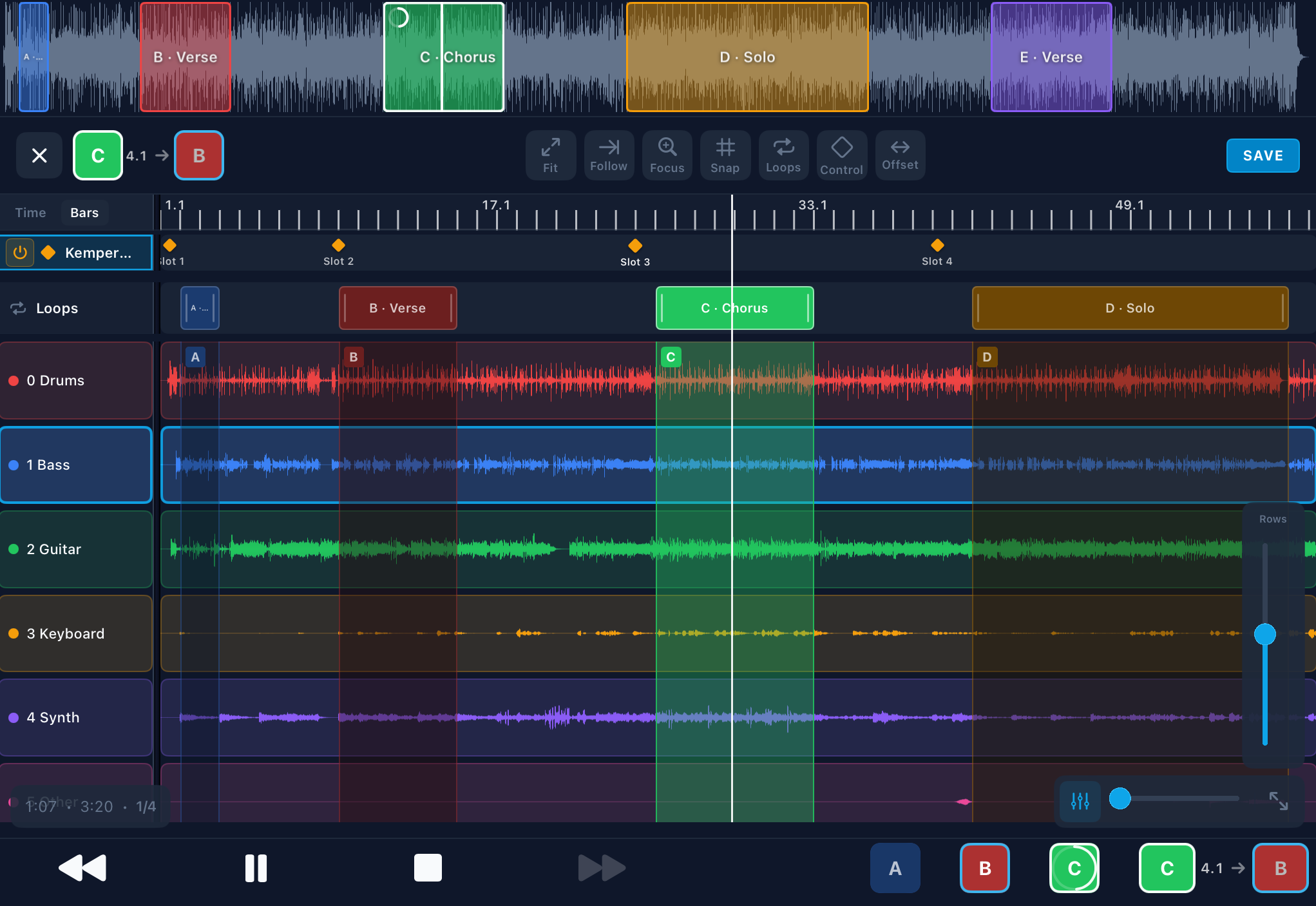
Timeline Chart lane
Mark where each heading sits in the song so Charts Live can scroll for you — separate from the cue list and from Control Track MIDI.
- Make headings in the chart editor (or flags on a PDF).
- Open Timeline → toolbar Chart Chart.
- Tap Add at the playhead, or short-drag on an empty spot on the Chart lane.
A tap on the lane or the waves only parks the playhead. It does not create a marker. The same heading can be placed more than once (a repeating chorus). Markers are coloured chips that match the heading. On a selected marker, Lead Lead is ± seconds — scroll a little before or after the hit. Tap SAVE with your loops. Unsaved markers still drive Live while that Timeline session is open.
Between markers, Live eases (Continuous) or jumps (Page). Until the first marker the page stays on the title and key. No markers → you scroll.
Chart settings
Settings → Charts (own sidebar tab, after Playback):
- Open song list when Charts opens — on by default. Off starts with the list hidden, so you land on the lyrics.
- Follow pitch — live chord names follow the backing-track pitch control (off by default). The chart file is not rewritten.
- Fold song list on select — when on (default), tapping a song in the Charts list closes the list so the chart fills the drawer.
- Keep song list folded after sidebar — after you open the widget sidebar, the Charts song list stays hidden when you close it.
- Open in chart focus on launch — start in Charts Live + Focus when a song exists (cue first, else first library song).
- Sections — the same name + colour list as the editor, for this library. Empty until you Create a name, add one here, or import a chart. Removing a name here does not change charts you already saved, unless you choose Merge.
- Chart style — fonts and colours for every song. Point sizes stay per song in the Style popover Size tab.
Loops A–L
Each song has up to 12 fixed loop slots labelled A–L. The letter stays the same for MIDI, foot pedals and shell widgets across songs — so “pedal Loop A” always means slot A on the loaded song. An optional name (e.g. “Solo”) is only for display.
Create & edit
- Drag on the empty Loops lane, or tap a gray A–L chip
- Drag the bar to move; drag the edges to resize
- Tap the loop bar to select it for rename or delete — this does not arm or seek
- Use toolbar Name Name and Del Del when a loop is selected
- Long-press a filled chip → Move to another letter (empty = move; occupied = swap). Pedals and MIDI still target the letter.
Arm & disarm (playback)
- Tap a filled A–L chip to arm the loop. Dimmed = inactive; full colour = armed. A progress ring fills as you play through the loop. Timeline chips still arm under Performance lock while the drawer is open (shell widgets / MIDI / pedals stay locked).
- If the playhead is already inside the loop, playback stays put and wraps at the end. If it is outside, BackTrackR seeks to the loop start (and starts playback if stopped).
- Tap the same chip again to disarm (Leave) — playback continues forward in the song; it does not jump back to the loop start.
- Arm a loop, Stop, then Play from earlier in the song: the time display stays with the song until you reach the loop end. It does not jump ahead to the loop while audio starts from the beginning.
- Timecode chase: when Sync → Chase is on and the song’s Timecode is Follow, loop arm is unavailable (chips dimmed; MIDI/pedals ignored). Set the song to Off, or turn Chase off, to use loops. Editing loop regions is still OK. As TC master, loops are allowed but wrap jumps absolute TC — see Timecode.
SAVE: Loop and offset edits are a draft until you tap SAVE. Drafts survive switching Mix ↔ Timeline. Closing with changes asks Discard or Save & close. Loading another song clears the draft.
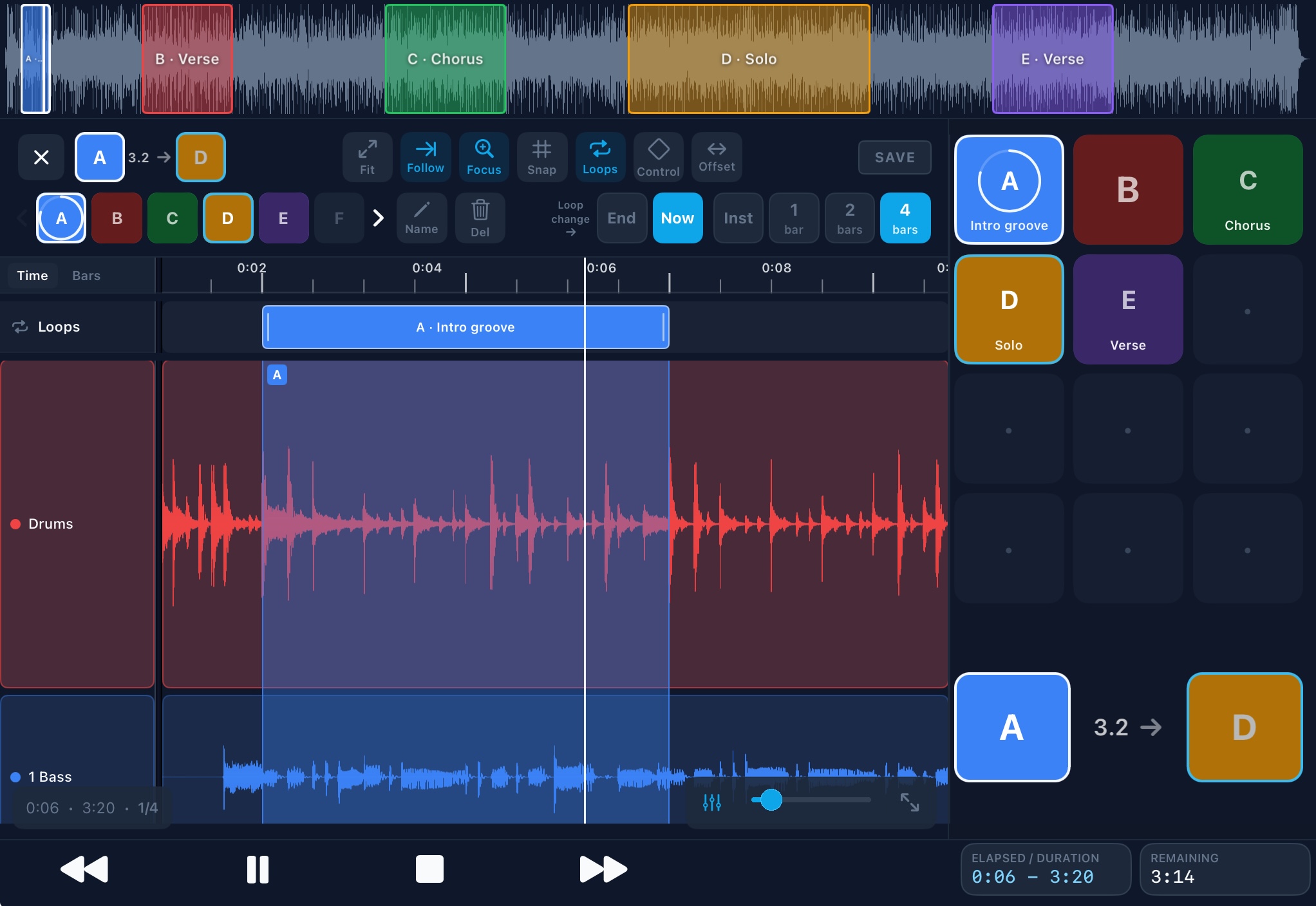
At end, Now & bar quant
When you move from one loop to another, choose how the switch happens:
- At end (default) — queue the next loop; switch when the current loop wraps. Queued chip shows an accent outline; tap again to cancel.
- Now — switch immediately (clears any At-end queue).
Under Now, pick launch timing:
- Inst — hard seek now (your finger timing)
- 1 Bar / 2 Bars / 4 Bars — finish the current bar, count N full bars, then land on the downbeat — always in time
Bar quant needs a known song BPM. Inst always works. While armed, the countdown shows current → remaining → next.
Stem offset
Shift individual stems left or right without changing song time or the locator at 0. Useful when one track has a count-in or starts late compared to the others.
- Turn Focus Focus off. Tap a track header (or the Offset Offset tool) to open the Offset panel.
- Nudge ±1 ms / ±1/16 / ±beat, or drag the selected wave horizontally.
- Align snaps the onset toward the beat grid. Reset clears this track’s offset.
- Apply to all tracks… — optionally Move loops too so A–L regions shift with the change.
- Tap SAVE with your loops.
Positive offset = delay (count-in silence). Negative = skip into the file.
Note: Offsets are live only for now — they are not yet included when you create a New Copy. That is planned.
Loops on stage
You do not have to stay in the Timeline drawer to use loops:
- Loop slot (A–L) widgets on the performance shell — arm/disarm with the same progress ring (Large size can show the loop name)
- Loop switch countdown widget — read-only display of the current → next switch timing
- Song overview — turn on Show loops to see colour bands and letters on the overview waveform
- Settings → MIDI → Loops — map Note / Prog / CC to Loop A–L (same arm path; respects At end / Now and bar quant)
- Foot pedals — learn each pad under Settings → Pedals, then assign Loop A–L (foreground only)
Empty slots do nothing. Shell loop widgets, loop MIDI, pedals and Next/Previous are blocked under Performance lock — Timeline A–L chips still work while the drawer is open.