Performing live
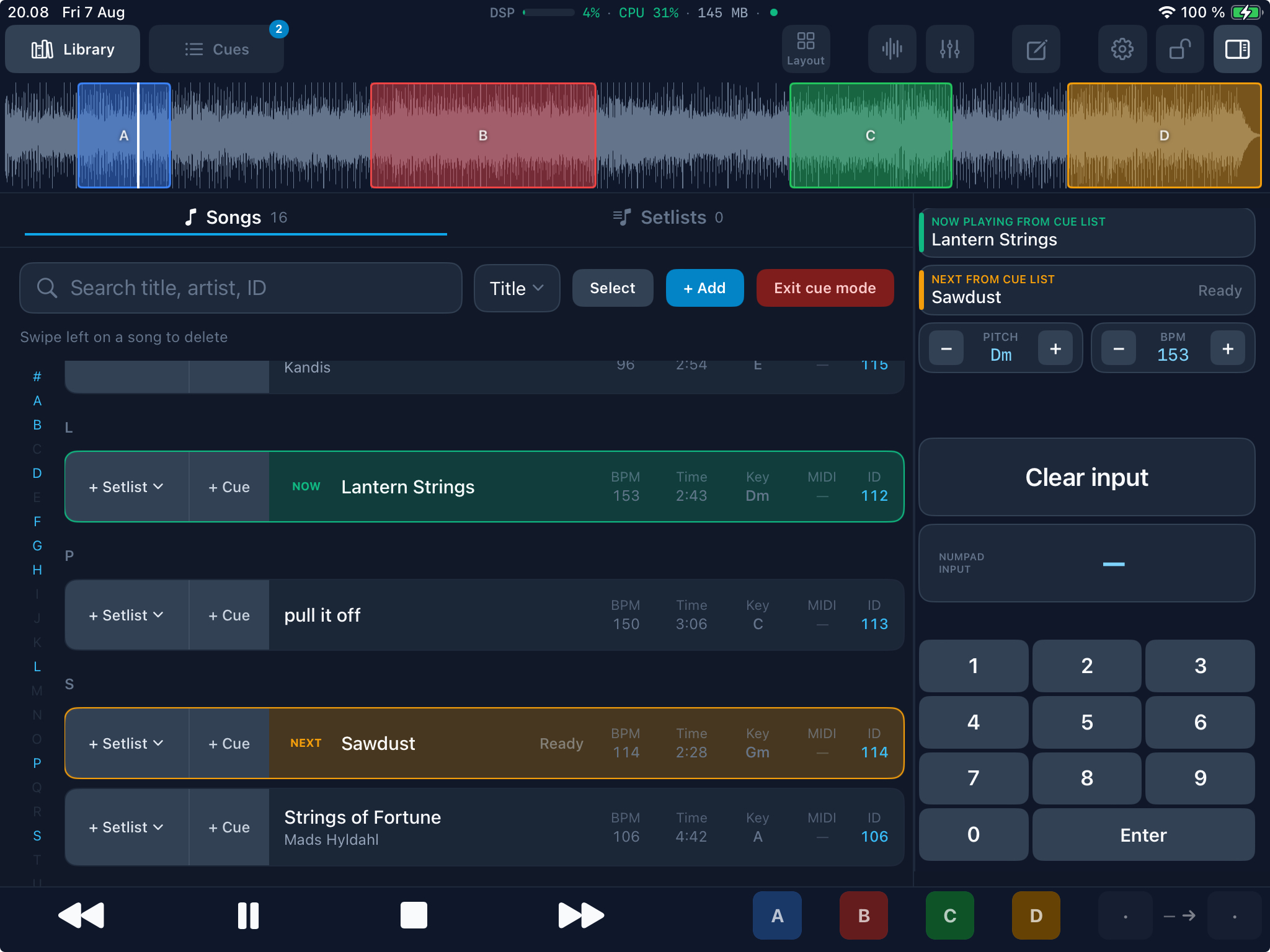
When showtime arrives, open your cue list and switch to performance mode.
- Select the cue list for tonight's gig.
- Enable Performance lock Lock to prevent accidental changes.
- Hit play on the first song.
- Open Charts Live if you are reading lyrics on this iPad.
- Use transport controls or auto-advance to move through the set.
- Watch NOW and NEXT indicators to stay oriented.
Fast song changes mean you can recover quickly from unexpected moments on stage — skipped songs, encores, or reordered sets.
Performance lock
Performance lock Lock prevents accidental edits during a live show — no bumped faders, no dragged widgets, no cue list changes mid-song. It also blocks shell Loop slot widgets, loop MIDI, foot-pedal Loop A–L, Next/Previous, and the chart editor (Live viewing still works). A blocked tap shows a card: Performance lock is on.
Exception: Timeline A–L chips still arm while the Timeline drawer is open, so you can edit loops without unlocking the show.
Enable lock before the first song and disable it only when you are off stage or between sets. All other playback controls remain available while locked.
Best practice: Lock the show during soundcheck once levels are set, so nothing changes before doors open.
Background audio
Playback continues when BackTrackR is in the background — useful if you need to briefly switch apps during a performance (e.g. to a lighting app). For lyrics and chords on the same iPad, use Charts Live instead of leaving the app.
Audio does not stop when the screen locks, as long as playback was active before switching away.