Performance dashboard
The dashboard is your on-stage control surface. Arrange widgets exactly where you want them:
- Transport — play, pause, stop, skip
- Timeline Timeline
 / Charts Charts
 / Edit Edit
 — open the arrangement drawer, the lyric page, or song Edit overlay
- Loop slot (A–L) and Loop switch countdown — arm loops and watch switch timing
- Song overview — progress or waveform; optional Show loops
- Timecode — absolute TC readout (LOCK / WAIT / FREE when chasing)
- MIDI in / out activity lamps, timers, cue cards, numpad and other shell controls
At the very top of the screen (system status bar), you can also show a light DSP & CPU load strip — separate from widgets.
Enter layout edit mode to drag widgets into position. Your layout is saved automatically.
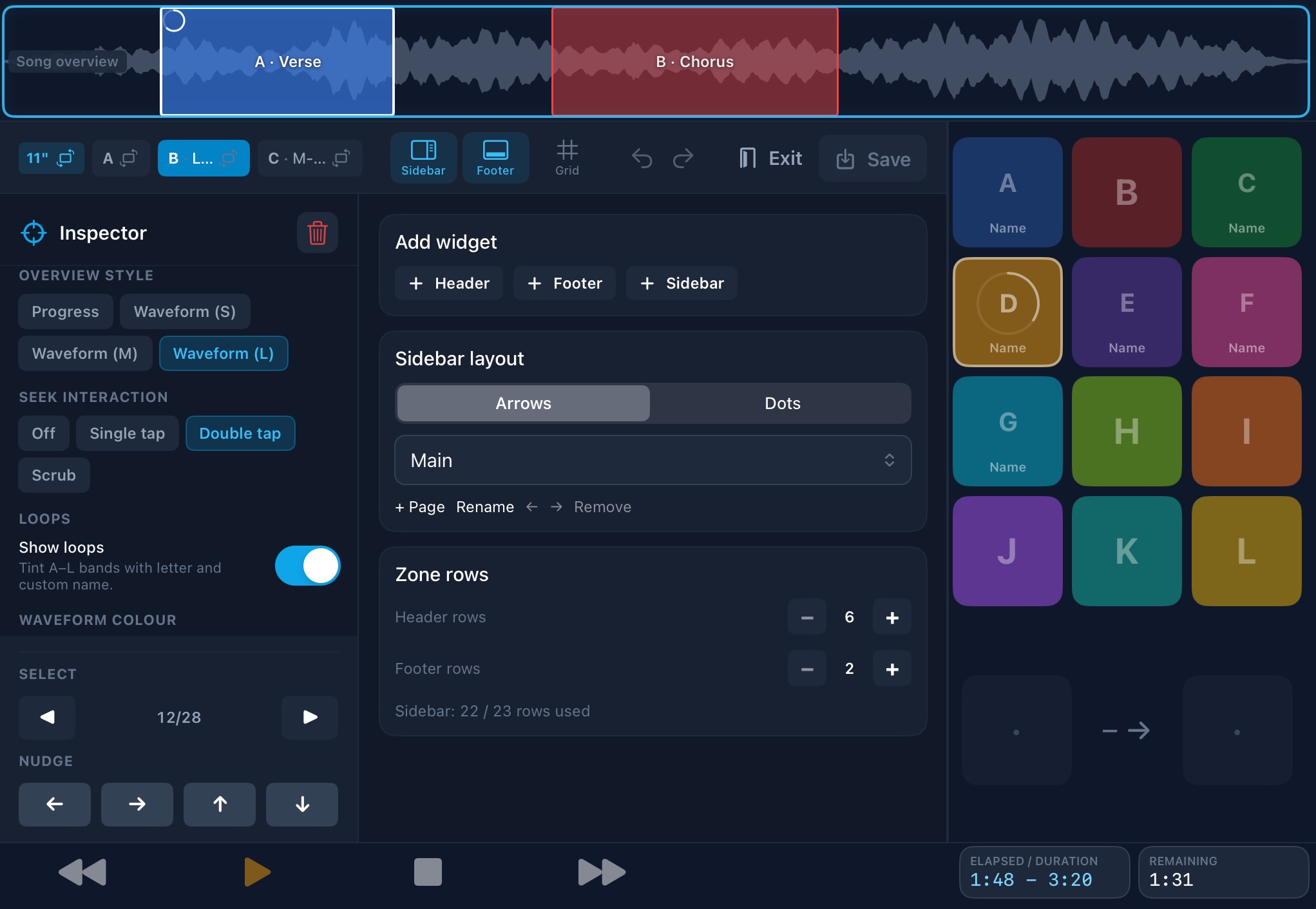
Layout presets & iPad sizes
BackTrackR ships six dashboard presets. You can rename any slot and customise the layout.
Settings → Layout names this iPad’s screen, such as 11-inch or 9.7-inch. Landscape and portrait are saved apart. Rehearsing on one iPad and performing on another keeps each layout.
- A · Simple — compact show: chrome + overview
- B · Loops — loop pads A–L
- C · Numpad — numpad and related chrome
- D · Chart — thin header/footer so Charts Live has a large page
- E · User 1 / F · User 2 — starters to customise
Every stock layout includes the Charts widget. Open Settings → Layout → Open layout editor to arrange controls; tap Save when you are done. If a taller header or footer will not fit, move or remove sidebar widgets first. Layout Share / Copy exports widget JSON only — for songs and settings use Backup & restore.
Appearance
Under Settings → General → App → Appearance pick Stage Dark (default), Classic Slate, Soft Slate (light gray-blue), or Paper (white pages with a dark bar). The shell, lists, and mixer faders update right away — no restart.
Split View & small windows
If you shrink BackTrackR in Split View or Stage Manager until the window is too small for the show screen, a full-screen message asks you to make the window larger. The controls stay hidden until there is room.