Introduction
BackTrackR is a live backing track player and show manager built for iPad. It is designed for musicians who perform with multitrack stems — separate audio files per instrument — and technicians who need to manage MIDI and timecode for multiple devices.
Think of it as a performance console for your show and backing tracks: import your songs, write or import a chart (lyrics and chords), build a cue list, mix each song, mark loops on the Timeline, set and manage your timecode and MIDI, arrange your on-screen controls, and play through the set with clear NOW and NEXT indicators.
Everything in the app serves rehearsal, live performance, and show management — cue lists, charts, loops, MIDI, and timecode on one iPad.
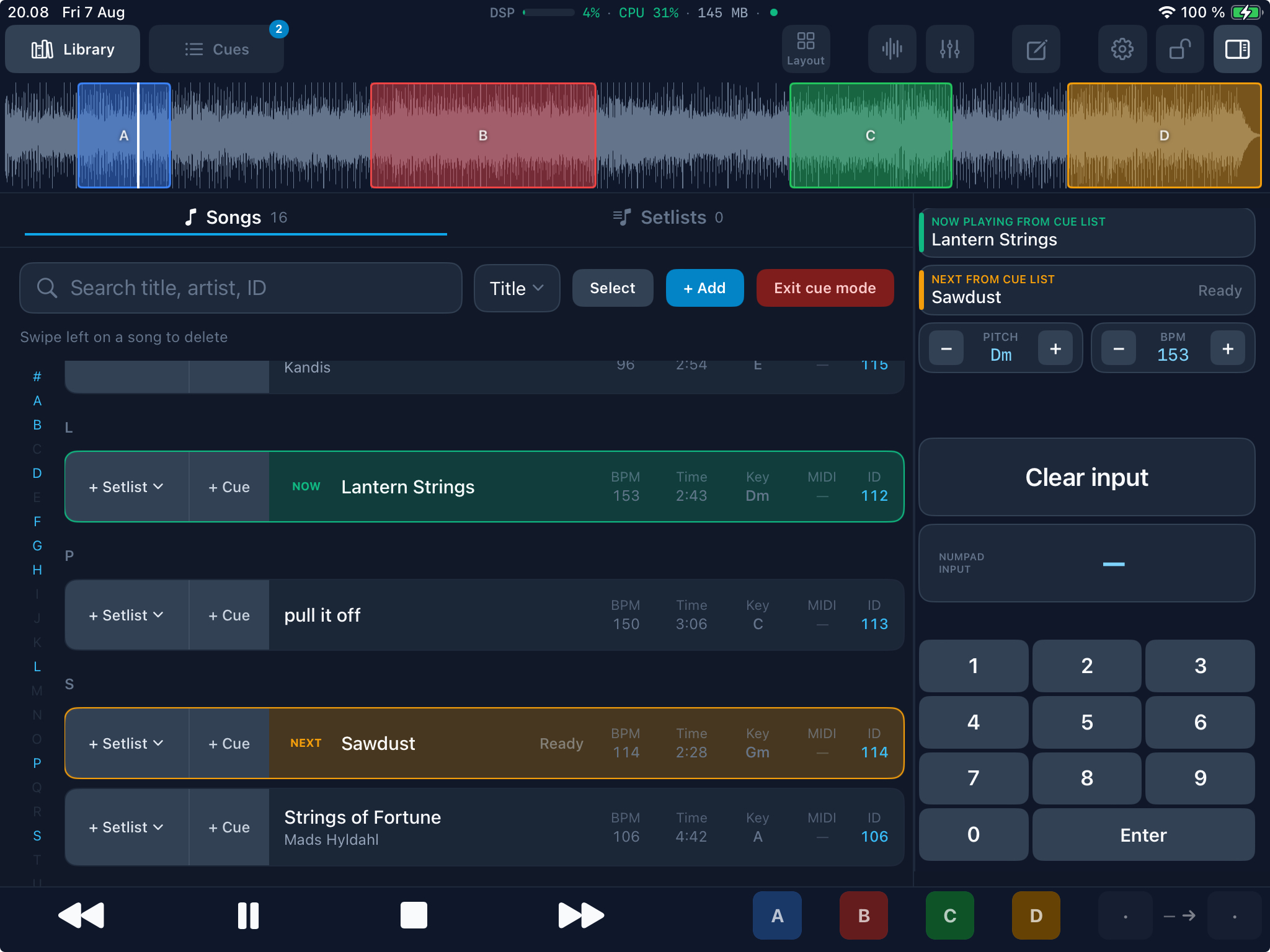
Workflow in three steps: Import songs → Build your cue list → Perform live.
System requirements
- Device: iPad only (not iPhone)
- OS: iPadOS 17+ / iOS 17+
- Orientation: Portrait and landscape — use whichever fits your rig and mount on stage
- Audio format: WAV, AIFF, MP3, M4A, AAC, CAF, and FLAC
- Storage: Songs and settings are stored locally on your iPad. Space needed depends on file format, number of tracks per song, and how many songs you keep.
- Audio interface: optional — the iPad’s built-in output is enough to start. A multichannel USB interface is recommended for live click / IEM / house routing. See Audio output.
No account is required. Cloud sign-in is only used if you choose to import or back up with your own Dropbox, OneDrive, Google Drive or Files / iCloud location.
First launch
When you open BackTrackR for the first time, your library is empty. There is no sign-up step — you can start importing songs immediately.
BackTrackR may offer Download demo song (~81 MB). That adds Demo Song 1 — stems, mix, chart, timeline markers and loops. Tap Download, or Not now and get it later from the library or Settings → Backup → Demo song.
When you tap Play, BackTrackR Pro offers a free trial for live playback (TestFlight uses Apple’s sandbox). See BackTrackR Pro.
- Open BackTrackR on your iPad.
- Go to the library and tap + Add + Add
 to add your first song bundle.
- Open the song and tap Mix Mix
 to check levels on each stem.
- Add the song to a cue list when you are ready to rehearse your set.
Understanding song bundles
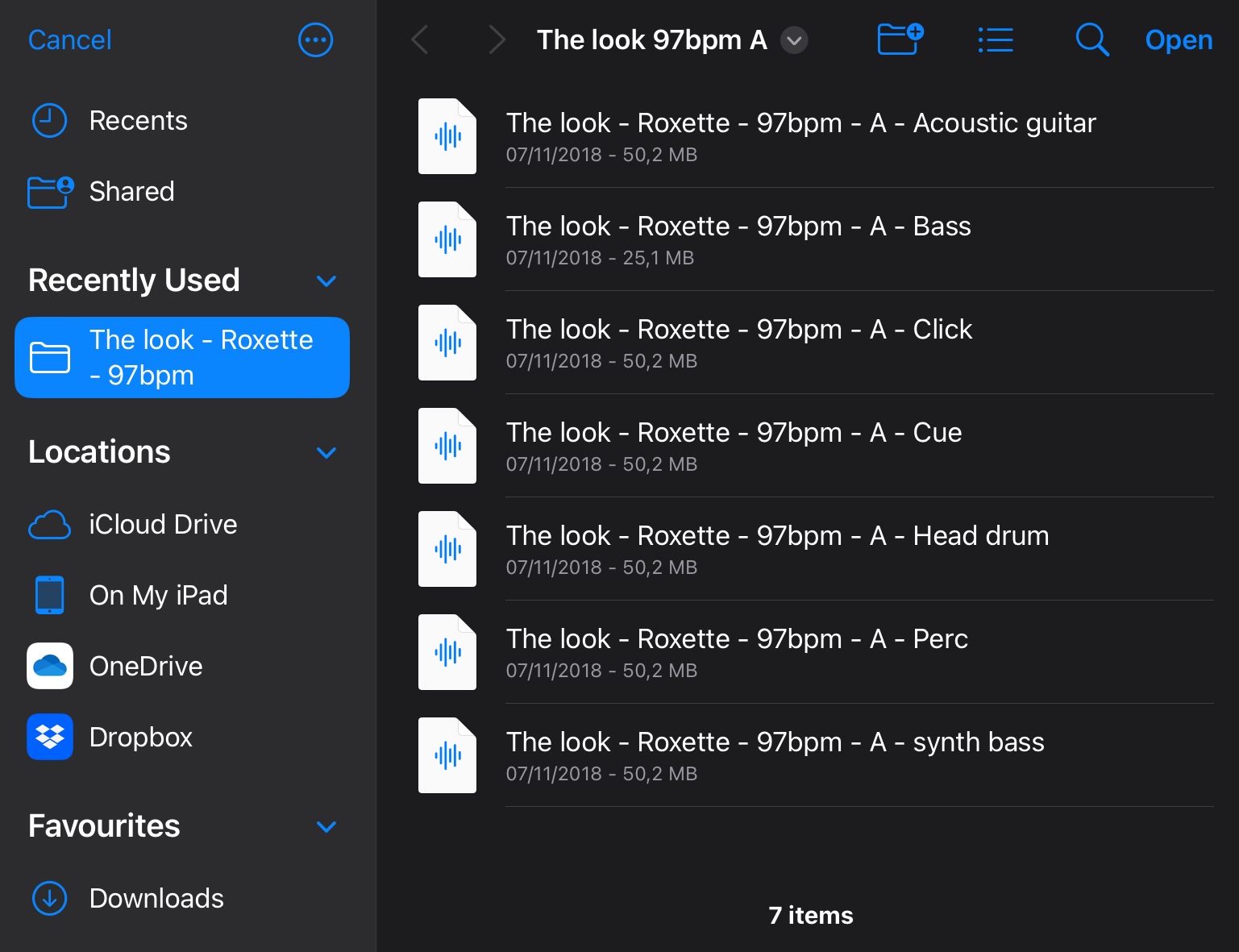
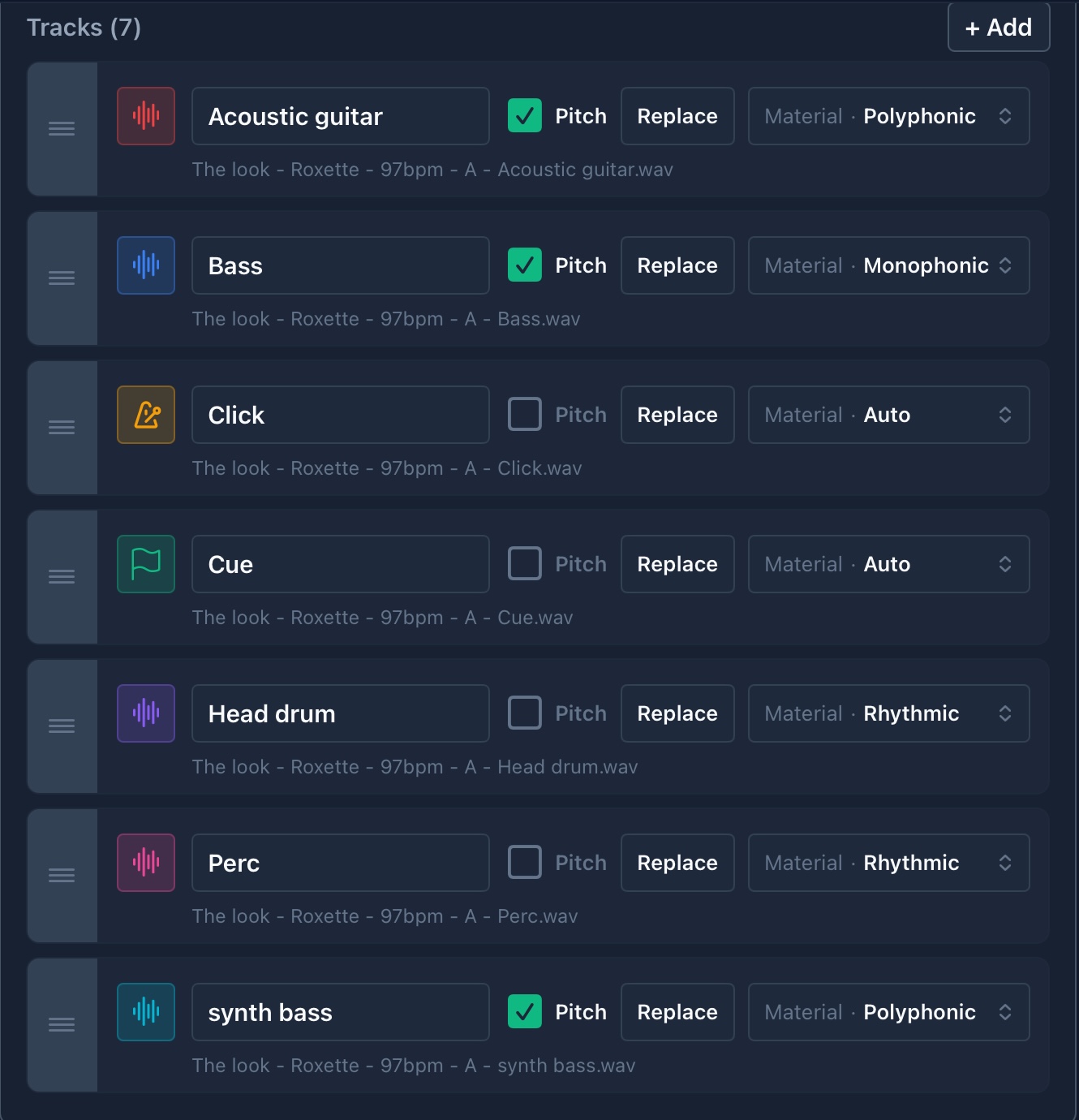
A song bundle is a set of audio files that belong together — one file per stem (e.g. drums, bass, keys, click, backing vocals). BackTrackR imports and groups these files as a single song in your library.
Typical bundle structure
- One folder per song containing multiple
.wavfiles - Each file is a separate stem you can mix independently
- Optional chart (lyrics, chords, Bars, Tab, PDF) stored with the song — see Charts
- Special stems (click, cue, timecode) and custom profiles for global mute / routing — see Special track routing
If you already work with stem-based backing tracks from a DAW or similar multitrack exports, your existing files should work without conversion.